Contract Seal: How Many Do You Need?

What stalls most people is not the contract seal itself. It is the question "how many places am I supposed to stamp?"
You fill in the signature line on the contract that arrived by email, send it back, and get a reply asking for a gan-in as well. Search around and a second term, gye-in, turns up too.
There is a simple reason the number of spots keeps growing. Each additional seal is layered on according to how many pages the document runs to and how many copies you make.
- A way to judge whether your contract needs a basic seal, gan-in, or gye-in.
- A clear sense of what each of gan-in and gye-in is meant to prevent.
- The sequence for finishing the whole thing on screen, with no printing or scanning.
A seal is a mark that stands in for the person it names. Creating one in someone else's name without authority can constitute forgery or fraudulent use of a private seal under Article 239 of the Korean Criminal Act, or forgery of a private document under Article 231.
A company seal calls for even more care, because it is by its nature in the corporation's name. If the authority has not been delegated to you, do not create or apply it. This sits in the territory of criminal liability, not company policy.
Contract seal: how far does your document go?
Requirements climb in three steps. The further down you go the more places you stamp, and what moves you up a step is the form of the document, not how important the contract is. Work through it with the contract in front of you.
This is the basic stamp that goes beside your name. A contract that fits on one page, along with confirmations and consent forms, stops right here. It is the mark that expresses your intent to enter the contract, so of all the seals, this is the one whose absence sends the paperwork straight back.
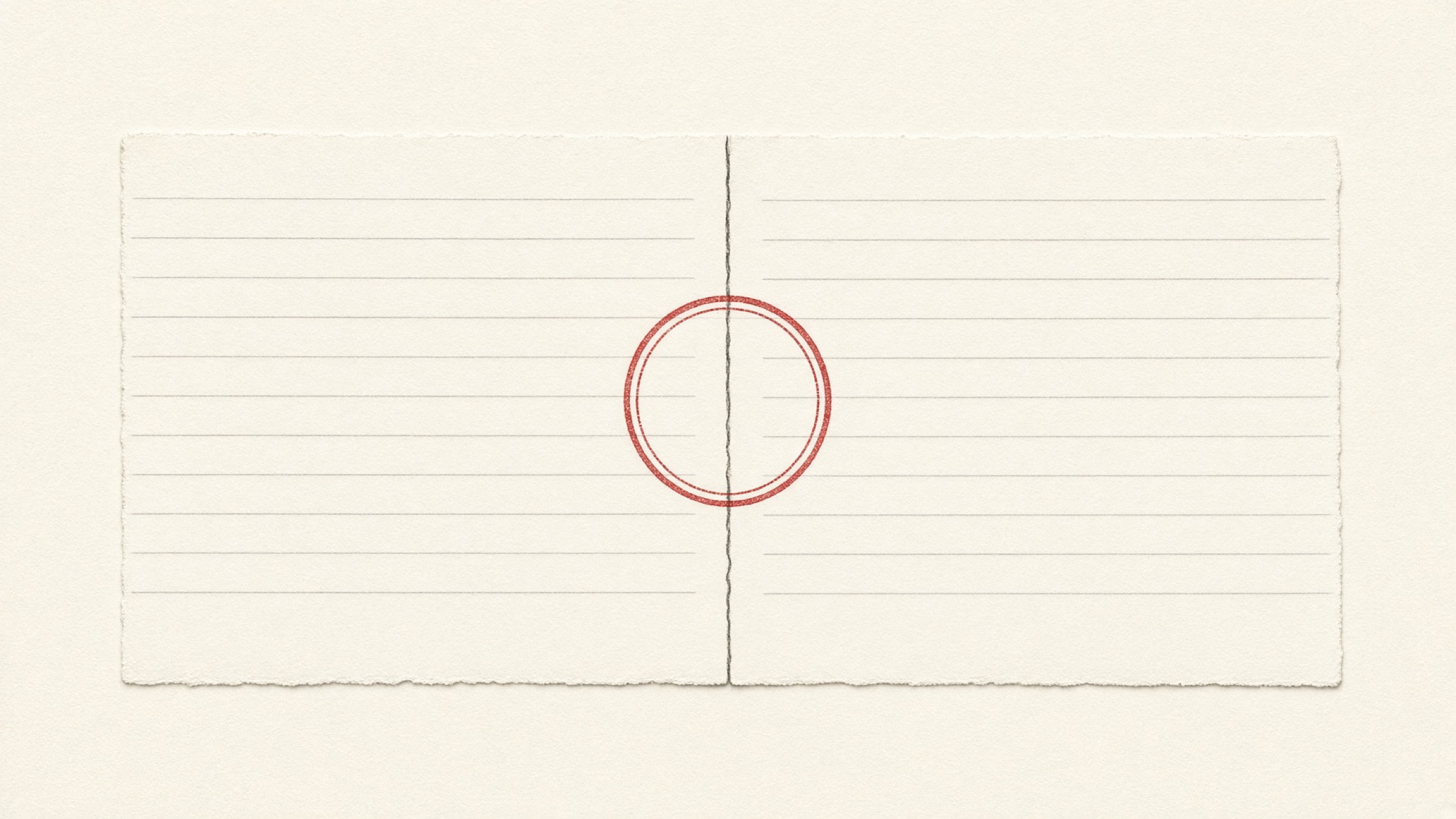
This contract seal is added the moment a document reaches two pages or more. It is stamped across the join between one page and the next so that half the impression lands on each.
On paper you fold the front page back slightly, stamp across both, and repeat at every seam. It is a mark meant to stop someone quietly swapping out a middle page.
This is added when the same contract is produced in two copies, one for each party. You lay them side by side, overlapping slightly, and stamp across the edge where they meet.
If gan-in binds the pages within one document, gye-in binds the copy the other party holds to the copy you hold, showing they are the same document.
Worth adding: the certified-true-copy stamp sits a little apart from this ladder. It is what you apply when submitting a photocopy to attest that it matches the original.
That means it attaches to the act of submitting a copy rather than to the contract itself. There is no fixed rule about where it goes, as long as it falls on white space that does not obscure the content.
| Type | Where it goes | What it prevents |
|---|---|---|
| Basic seal | The "(seal)" box on the signature line | Nothing — it is the expression of intent |
| Gan-in | Every seam between pages | A middle page being swapped out |
| Gye-in | The edge where two overlapping copies meet | Your copy and the other party's diverging |
| Certified true copy | Any white space that does not obscure text | Doubt that the copy matches the original |
Is a contract void without gan-in?
Generally, no. Gan-in and gye-in are not requirements imposed across the board by statute; they are practical conventions aimed at preventing forgery and alteration. Their absence does not by itself strip a contract of legal effect.
Even so, when the request comes, it is better to comply. The issue is not validity but acceptance.
Korean government grant paperwork in particular often states the required contract seal method in the public notice, and anything that does not match gets returned regardless of the content. A single pass over the instructions before you send saves the whole round trip.
Is an image seal acceptable?
Stamping on screen is not rejected out of hand simply for being electronic. Article 3(1) of the Digital Signature Act provides that an electronic signature shall not be denied effect as a signature, signature-and-seal, or name-and-seal solely because it is in electronic form.
That clause means "electronic form alone is not grounds for rejection" — it does not confer effect automatically. Article 3(2) states that an electronic signature has the effect of a signature or seal where it is chosen under statute or by agreement between the parties.
That is why agreeing in advance with the other party to exchange the document electronically is the practical heart of it. Where a procedure comes with a registered-seal certificate attached, or internal rules call for original paper, an image seal may not substitute.
How do you finish the sealing on screen?
All you need is one transparent PNG of your seal. Make it once and every contract after that can be returned from wherever you received it.

- Prepare the seal: if you have a physical one, stamp it on white paper and photograph it in good light; if not, generate one by entering just your name in Stamp Maker
- Remove the background: run the photograph through Background Remover to get a transparent PNG
- Stamp the PDF: position it in PDF Stamp, save, and you are done
For a multi-page document, the feature that stamps the same position across every page at once lets you handle a gan-in request entirely on screen.
If a handwritten signature is also needed, prepare one alongside with Signature Maker. And when several sealed documents go out together, Merge PDF combines them into one tidy file.
Easy things to miss when sealing
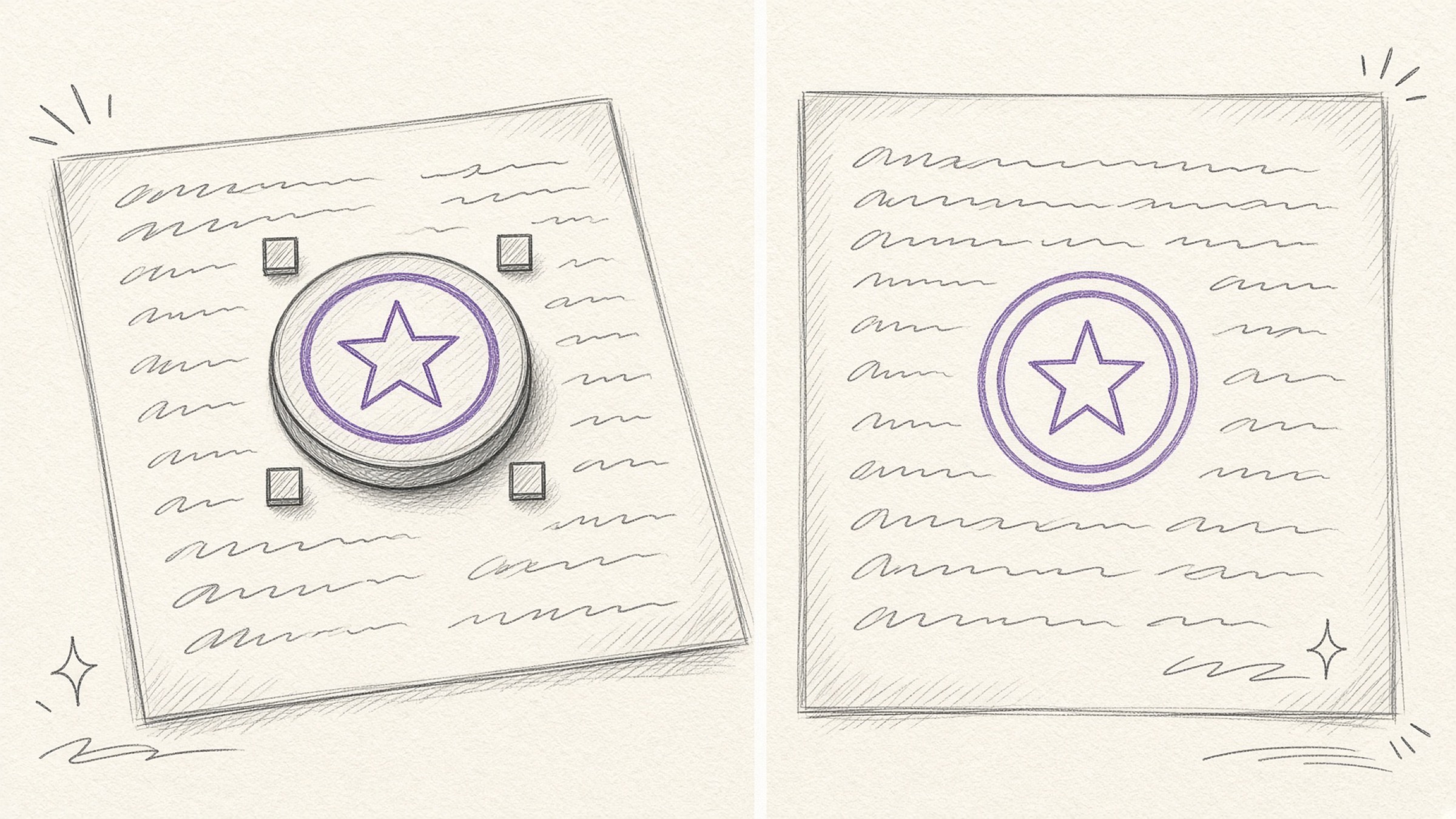
Drop in a seal that still has a white background and its edges sit as an opaque block, hiding the text underneath. Photos taken in dim light also remove badly, so shoot head-on and in bright light.
If you merely drop the image onto the page in a word processor and send that file as is, the recipient can click the seal and move it. Save it so the image is flattened into the page, or use a tool that stamps the PDF directly from the start.
A transparent PNG seal is exactly as dangerous in someone else's hands as it is convenient in yours. Keep it somewhere only you can reach rather than in a chat thread or a shared drive. For a company seal, it is safer to designate who is authorised to use it.
In one line
The document decides how far the contract seal goes. One page means one stamp on the signature line, several pages add gan-in, two copies add gye-in. And at every one of those steps, a single transparent PNG seal handles it on screen.
If a contract is sitting in your inbox waiting for a reply, you can finish it right now in PDF Stamp.
References
- Digital Signature Act, Article 3 (Effect of Electronic Signatures), paragraphs 1 and 2. Korean Law Information Center
- Criminal Act, Article 231 (Forgery or Alteration of Private Documents), Article 239 (Forgery or Fraudulent Use of Private Seals). Korean Law Information Center