Hit the 10MB Wall - PDF Compression, Three Failures
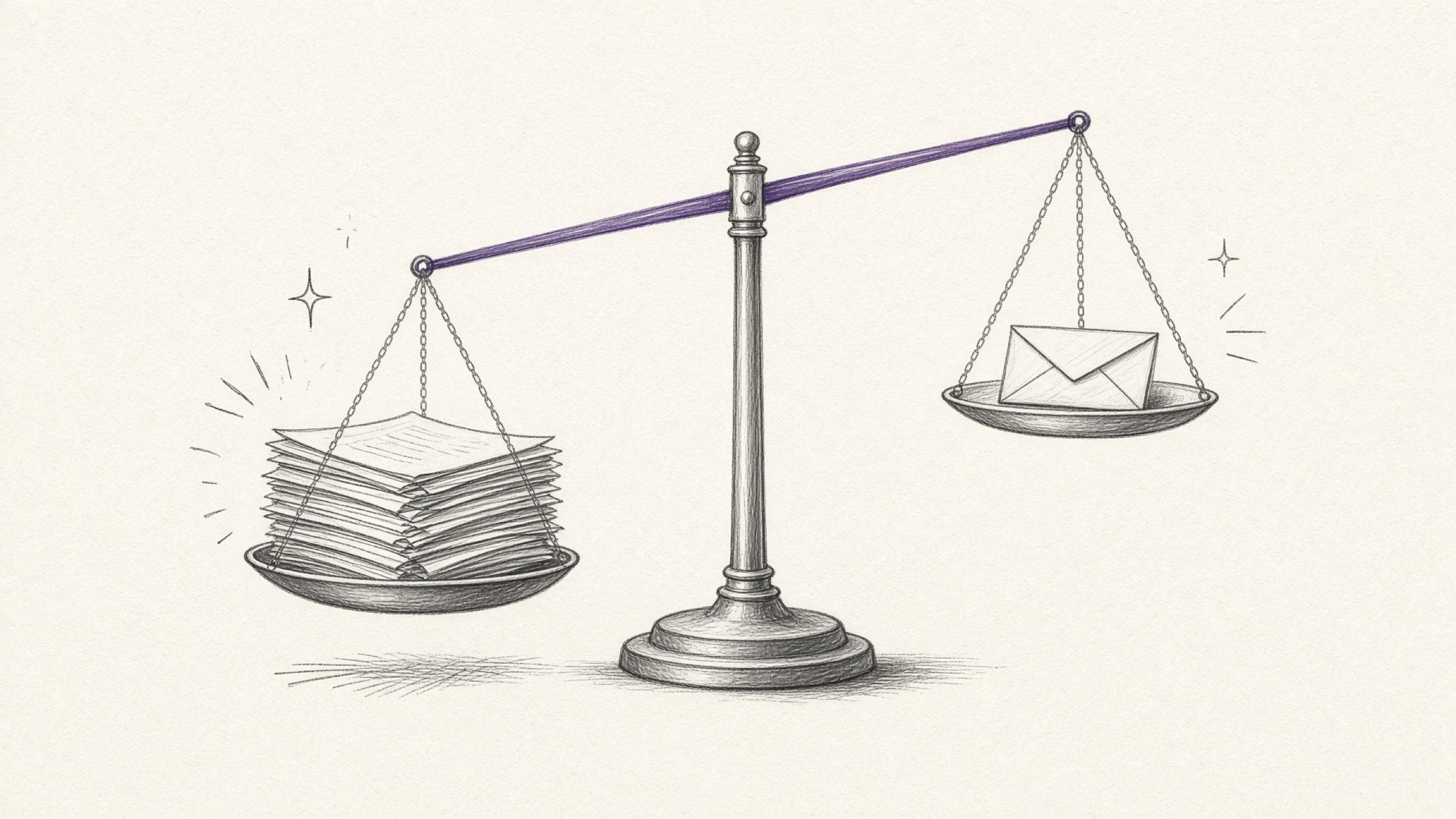
I had no idea PDF compression could be this stubborn. I was filing one document online and the upload box kept refusing it. The only guidance on screen was a single line saying the attachment exceeded the permitted size.
The file was a stack of scanned pages bundled into one PDF, several times over the limit, and the deadline was that evening. A job I expected to finish in one go stopped me three separate times.
- Why the same strength setting gives wildly different results on different files.
- The point where shrinking too hard gets your document rejected, and how to stay clear of it.
- The order that brings a multi-page submission under the limit.
My assumption: PDF compression is just a dial you turn up
My first theory was simple. Compression felt like squeezing air out of a zip bag, so surely turning the dial up far enough would make anything small. I went straight to the strongest setting.
The size definitely dropped. It landed under the limit, I attached it and filed it, and at that point I thought the job was done.
Failure one: it went through, then came back rejected
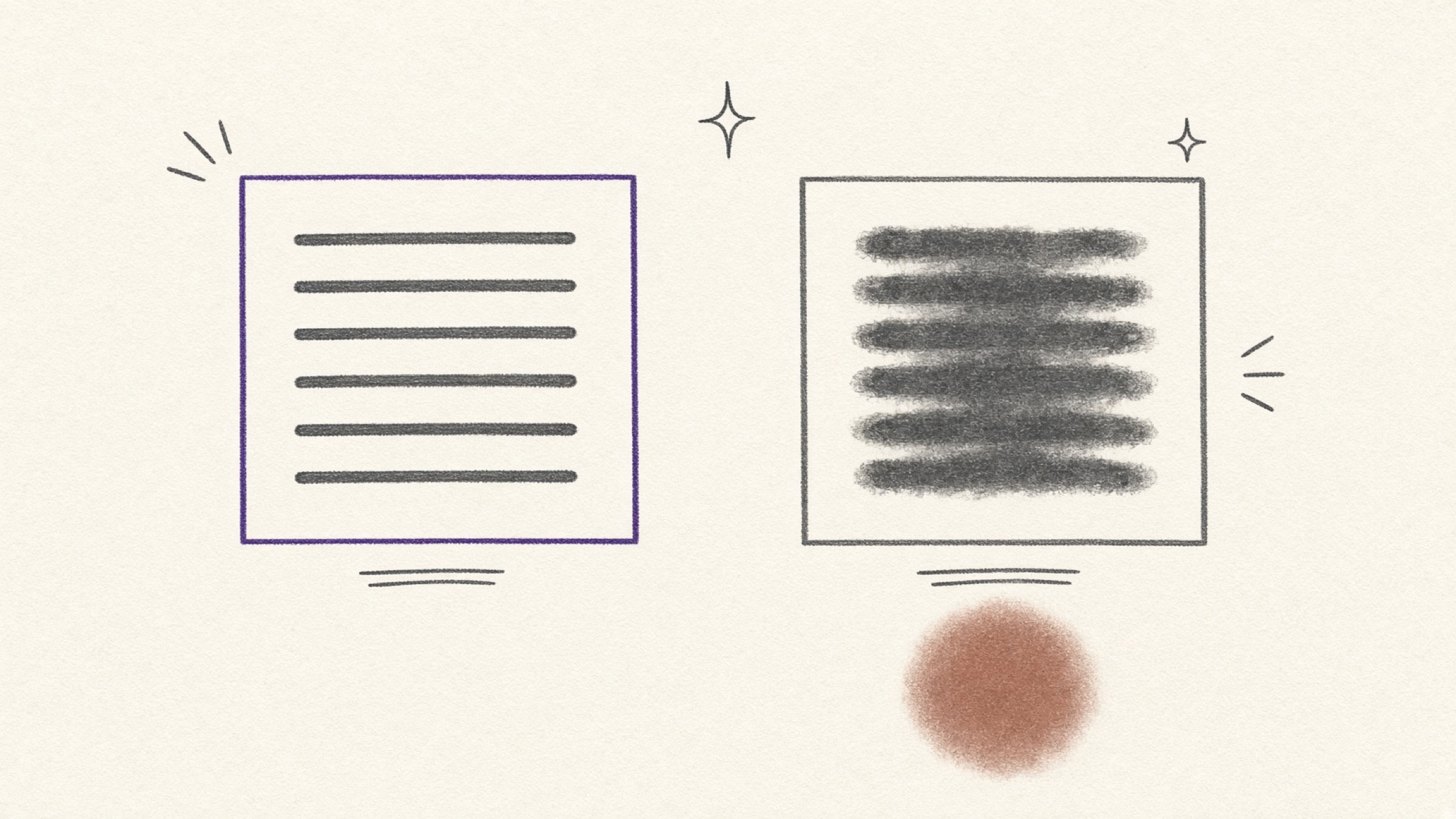
The rejection notice arrived the next day. The reason was not the file size but illegible entries. The file had been accepted without complaint; the person who opened it simply could not read it.
I opened it again on my own screen. Zoomed out, it looked perfectly fine. Then I magnified the box holding the amount, and the strokes of the digits had fused into each other. The seal had bled into what looked like a red smudge.
Compression does not run backwards. Blowing a shrunken file back up does not restore the strokes it destroyed. If I had not kept the original somewhere else I would have had to rescan everything, and luckily that folder was still sitting there.
Failure two: this time nothing shrank at all
Determined not to repeat the mistake, I ran PDF compression again at the gentlest setting. The output came back almost identical in size to the original, off by a few dozen kilobytes.
Nudging the strength up a level changed nothing either. I was starting to suspect the tool was broken, until I noticed I had been handling two kinds of file that day. The scans shrank happily. The document exported from a word processor would not budge.
The turn: PDF compression never touches the whole document
A PDF looks like one solid object, but inside it is not. Text is stored as text, and photos and scanned pages are stored separately as images. What a compression tool works on is the image half, re-encoding those images at a lower quality and putting them back.
That is why results diverge. Paperwork scanned at high resolution is mostly image data, so it shrinks visibly. A text-based PDF exported from a word processor has almost nothing to re-encode, so the size stays put no matter how high you push the strength.
It is a signal that there is nothing there to shrink. Pushing the strength higher on that file is time thrown away. The right move is to change direction: drop pages or split the file instead.
Failure three: I had the order backwards
The submission was not a single sheet. A few scans were mixed in with paperwork I had photographed on my phone. I ran PDF compression on each file separately and bundled them at the end.
Paging through the result, the sharpness changed from page to page. Some were crisp, some were hazy, and one document looked hastily stitched together. The combined size had not come down as much as I expected either.
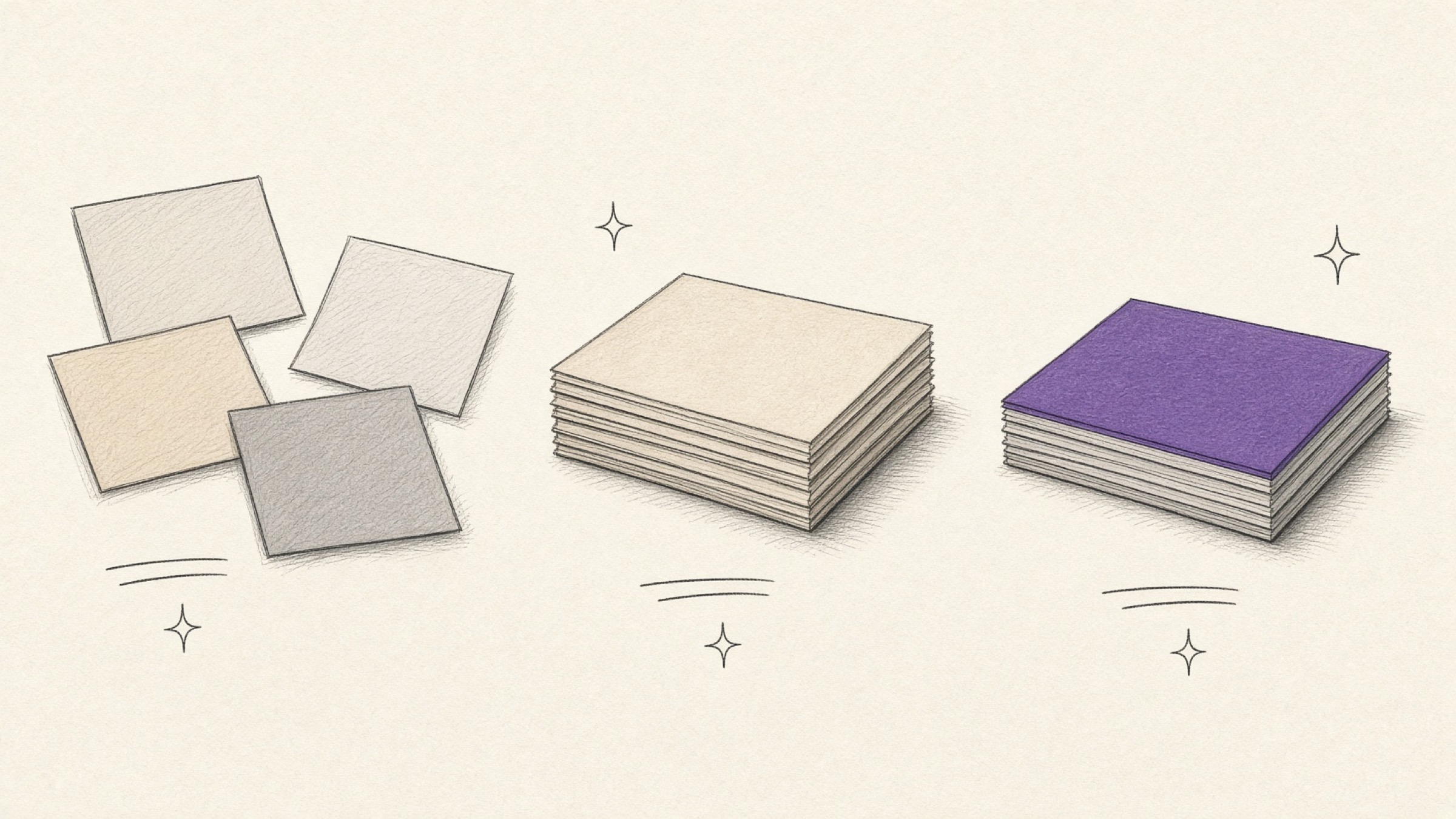
Flipping the order fixed it. Merge first, compress last, exactly once. That way a single standard applies to the whole document and the page-to-page variation disappears.
How it finally went through
The fourth attempt was accepted. What I changed was not the tool but the order and the standard I was judging by.
First I copied the original into a separate folder. The photographed paperwork went through Image to PDF so the formats matched, then Merge PDF bundled everything in submission order. After that I ran PDF Compress at the medium setting.
The target is the part that matters here. You are not aiming for as small as possible, only for just under the receiving system's limit. There is no reason to force a 10MB allowance down to 1MB. All you gain from the extra squeeze is lost quality.
If raising the strength still will not get you under the limit, that is not a problem compression can solve. Removing pages you do not need, or checking whether the recipient accepts a split submission, gets you there faster.
The check before you submit
A compressed file usually looks fine at a zoomed-out view. The spots that trigger a rejection are predictable, so magnify those and nothing else.
- Numbers such as amounts, account numbers and business registration numbers, and whether their strokes have run together
- Whether the outline of the seal and signature has bled into a smudge
- Whether the fine print in small type is still readable
- Whether the thin rules inside tables have broken up
- Whether the page count and order still match the original
If anything trips a check, rebuild it one strength level lower. You kept the original, so you can redo this as many times as you like. The file is what cannot be undone, not the work.
Let the document choose the tool
Plenty of services handle PDFs, in Korea and elsewhere, and each has its own strengths. Rather than asking which is better in the abstract, picking by the nature of the document in front of you leads to less wandering in practice.
| If this is your situation | Here is how to judge it |
|---|---|
| Internal files holding customer data or confidential material | The file leaving the company at all may breach policy. An internally approved tool is the rule |
| A public document you handle once and forget | A single-purpose tool you can use without signing up is quicker |
| Bulk work you repeat every day | A paid product with batch processing or automation is worth considering |
| Editing, signing and collaboration as well | A broad all-in-one product suits you better |
Whichever way you go, the thing to verify is the same. How a service handles your files is set out in its official notes, so read those first if the document is sensitive. The mechanics of PDF compression do not change between tools, which means the judgement calls above carry over intact.
PDF Compress offers low, medium and high, and no account is required. A single upload can be up to 50MB, and the result comes back as a PDF. If you need to fold photo files in, square up the format with Image to PDF first, and use Merge PDF for the bundling.
What three failures left me with
What I got wrong about PDF compression at the start was treating it as a volume knob. It is closer to re-baking the images inside the document: with nothing to bake, nothing happens, and bake it too hard and it becomes unreadable.
So the rules I am left with fit in three lines. Keep the original apart. Shrink only to just under the limit. After shrinking, magnify the numbers and the seal. Hold to those three and a rejection will rarely cost you a day.
If an upload box is blocking you right now, start by opening PDF Compress. When several documents are involved, bundle them with Merge PDF and shrink once at the very end.
References
- ISO 32000-1, "Document management: Portable document format": the international standard covering how a PDF stores text objects and image objects separately inside the file.
- MDN Web Docs, "Image file type and format guide": the basis for the point that JPEG is lossy, so quality is lost every time the file is saved. It is also why a scanned PDF shrinks so much while its lettering smears. Read the guide
- Attachment size limits and grounds for rejection vary by recipient, according to each agency's or company's public notice and system guidance. Check the relevant notice before you submit.