Saved as webp? When you need webp conversion
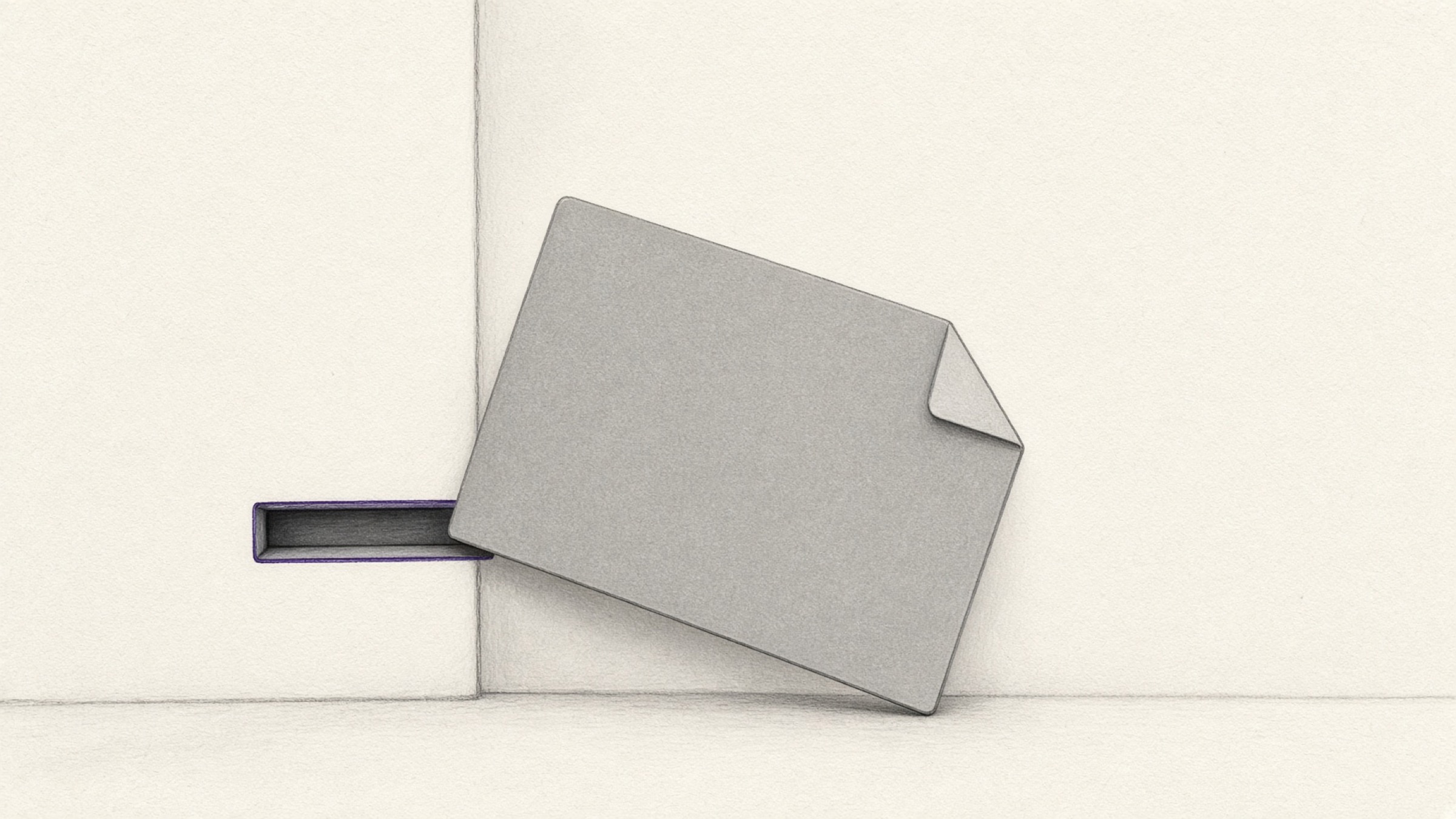
The moment people go looking for webp conversion is usually the same one. You save an image you like from the web, the file name ends in neither .jpg nor .png but .webp, and the picture that looked perfectly ordinary on screen gets blocked the moment you try to upload it somewhere.
So this article focuses less on what webp is and more on where this file gets turned away. Once you know the point where it fails, it becomes obvious whether you need to change anything at all.
- know why saved images land as .webp in the first place;
- be able to tell exactly where the file really gets blocked;
- be able to decide for yourself between JPG and PNG.
What just happened? An extension I have never seen
All you did was right-click and save an image, yet the file arrived with a name like photo.webp. It displayed fine on screen, so you assumed it would save as a jpg — and now that unfamiliar suffix makes you wonder whether the download went wrong.
The download did not fail. The file is intact and the picture inside it is unchanged. The only difference is the format the picture is stored in. Which is also why webp conversion is not always necessary.
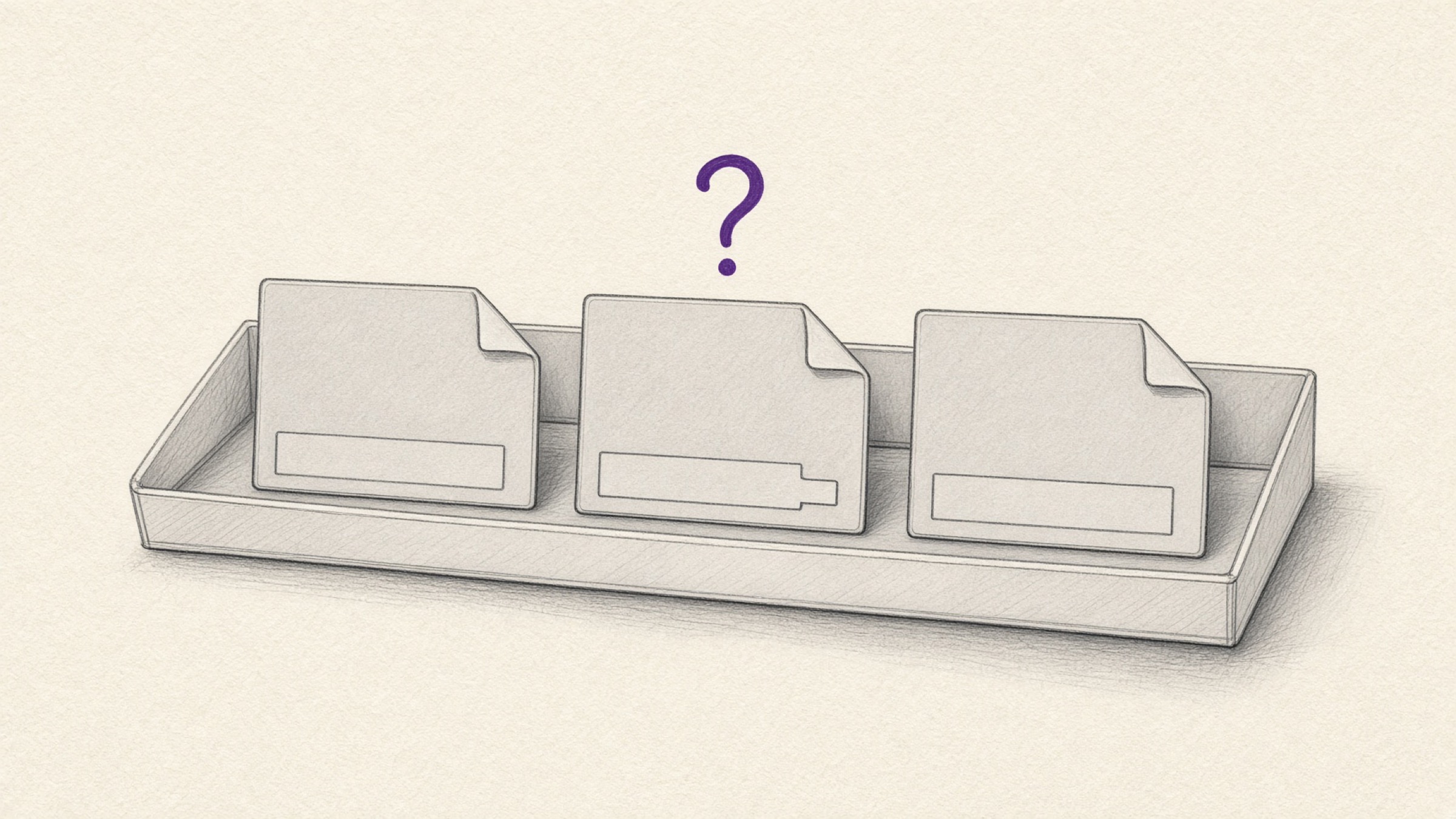
An extension is a tag attached to the end of a file name. It signals how the data inside should be read. An unfamiliar tag does not mean there is anything wrong with the file.
Why did the file end up in webp?
webp is an image format used to reduce the size of images on web pages. A page with lots of photos means more data to download and a slower load, so fitting the same picture into a smaller file makes the page faster. That is why plenty of sites now serve their images as webp.
Your browser stores that image exactly as it received it. It simply moves the file it had already downloaded to display on screen onto your disk, so if the page was serving webp, the saved result is a .webp too.
The same reason explains why some images save as jpg and others as webp. Nothing changed in your computer's settings — different sites simply serve different formats.
So what actually changes for me?
Viewing it on screen is rarely a problem. Major browsers display webp, and it often opens in the default photo app or in Paint on recent versions of Windows too. So saying "webp files don't open" is not accurate.
The real snag sits somewhere else. There are cases where upload forms, document insertion, or certain programs reject it or do not support it. Being able to open a file and being willing to accept it are two different things.
| Situation | What usually happens |
|---|---|
| Opening it in a browser | Major browsers display it |
| Attaching it to a submission form | Some sites limit accepted formats to jpg and png |
| Inserting it into a document or slide deck | Depends on the program and its version |
| Sending it to a print shop or vendor | Check the format they ask for first |
That makes the deciding factor for webp conversion not the format itself but the side receiving it. Looking fine on your screen is no guarantee it will be accepted, and if nothing has blocked it anywhere, there is no reason to change it.

Can I just rename it to .jpg?
It is the first idea that comes to mind, but it does not work. Changing the extension to .jpg does not change the format. The data inside the file stays exactly as it was.
All you have done is swap the label, so the visible name and the actual contents no longer agree. Programs and upload forms that inspect the format may treat the file even less predictably as a result. To genuinely change the format, the picture has to go through a conversion that saves it again.
Editing the letters at the end of the name
Renaming photo.webp to photo.jpg only swaps the tag. The data inside is untouched, so the format is unchanged.
Saving it again in a different format
Reading the picture and saving it fresh in the format you want is what real webp conversion means. Upload the file to Image Converter and choose JPEG or PNG; if you upload several at once, the results come back bundled as a single ZIP.
JPG or PNG for the webp file?
There is only one thing to watch out for here. JPG cannot carry transparency. So when you convert an image with a transparent background to JPG, the areas that were transparent get filled with white.
For a logo, an icon, or any picture whose background you deliberately removed, that stings. Place it over a coloured background and the white rectangle shows up plainly. Convert those to PNG instead and the transparent areas stay transparent.

| If your image is | Use this format |
|---|---|
| A photo with a full background | JPG (smaller file) |
| A logo or icon with a transparent background | PNG (transparency preserved) |
| Headed somewhere that specifies a format | Exactly the format specified |
Turning a photo with complex colour into a PNG can make the file considerably larger. JPG, on the other hand, uses lossy compression, so a little quality can be given up in the saving. That is why it is safer to keep the original file rather than delete it.
Ready to try webp conversion?
webp conversion takes nothing more than uploading the file to Image Converter and choosing JPEG or PNG. There is no install and no sign-up, and you can upload several images at once.
If the size or the dimensions bother you afterwards, you can keep going from there. When a file is too heavy for an attachment limit, trim it with Image Compressor; when the recipient specified pixel dimensions, match them with Image Resizer.
- Blocked by an upload form: check the accepted-format notice first and convert to that format
- The image has a transparent background: choose PNG, not JPG (transparency turns white)
- Caught by a size limit: convert first, then compress
- Nothing has blocked it anywhere: you can leave it as it is
With any service that processes uploaded files, how long those files stay on the server is always the thing to check. Retention periods and deletion policies differ from service to service.
So for personal images such as photos of people, it is worth making a habit of reading each service's own official notice before you use it.
References
- Google Developers, official documentation on the WebP image format. developers.google.com/speed/webp
- MDN Web Docs, guide to image file types used on the web. MDN Image file type guide